You must be logged in to rate content!
3 minute read
Working on your ride? Show off your Build!
It's no secret gearheads love build threads. There is nothing like watching a cool car or truck come together, and the inevitable struggles and victories that come along the way. So if you are working on your ride, start a build thread! We made it super easy, and the community will love to see what you are working on.
Not only is it simple to post and update build threads on DIYauto.com, you can easily share it to social media, or your friends can follow your build and receive updates in their feed every time you post!
Below is a video showing you how, or continue reading for the step-by-step instructions.
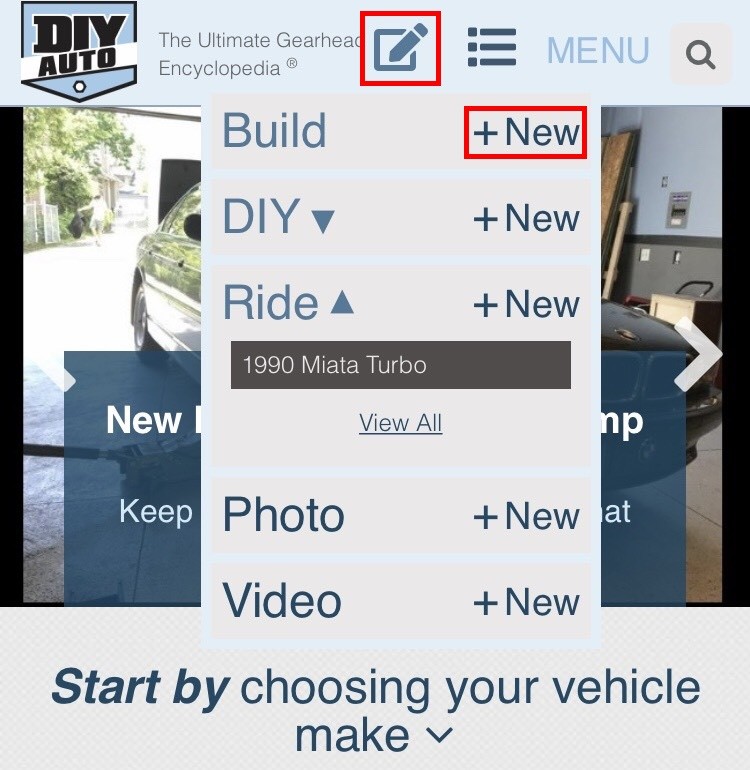
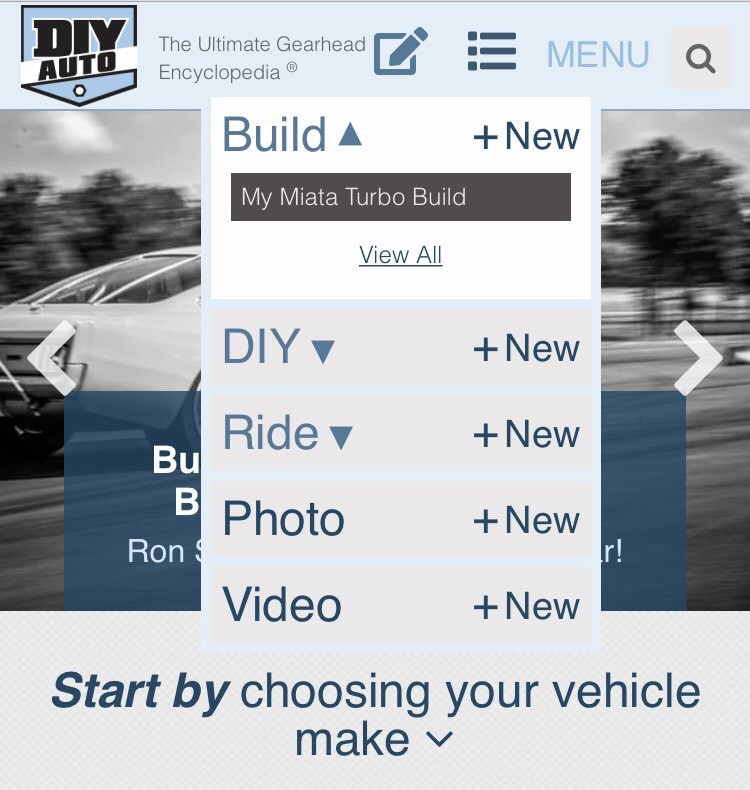
To get started, first login and click the pencil "post" icon on the top of the page. Click "+ New" next to Build to start a new build thread.
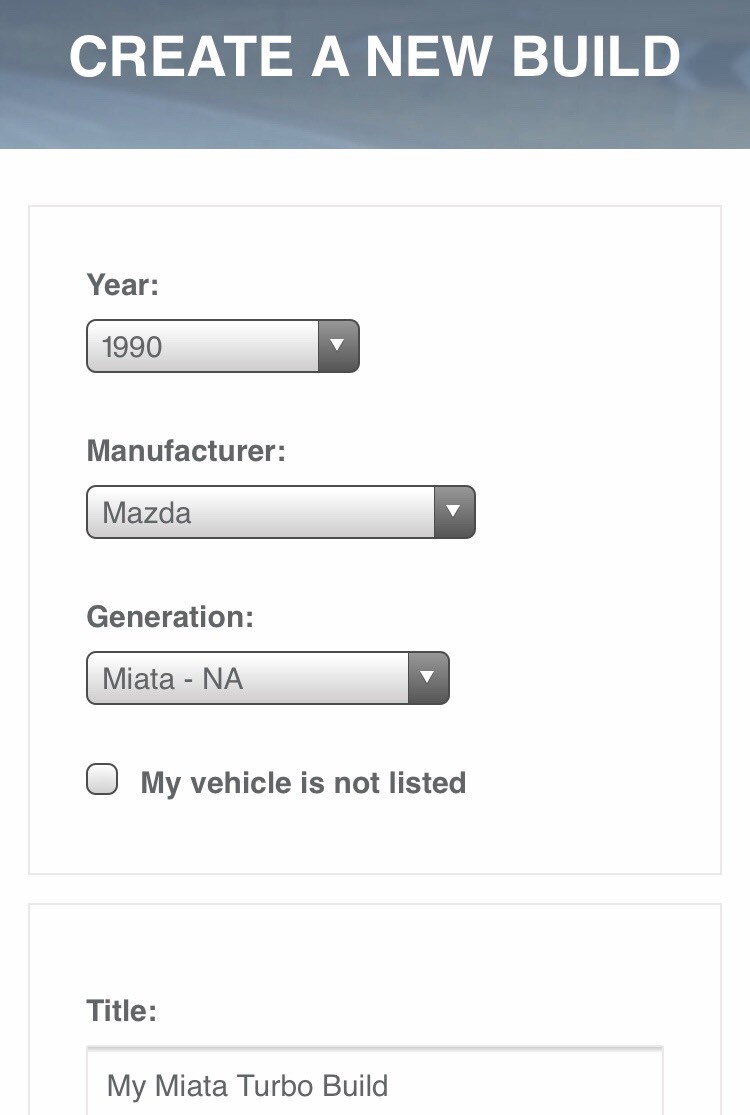
Add the information about your car with the dropdown menus. Add a title and start your build thread!
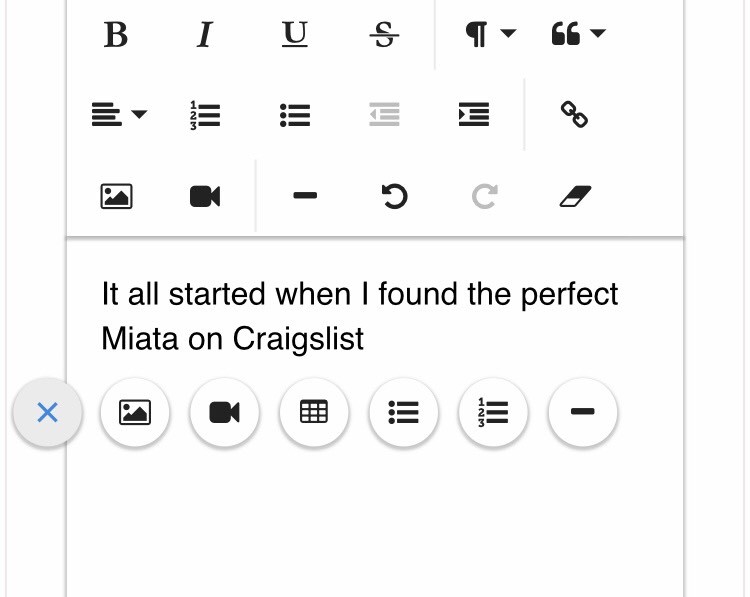
You have the standard text editing options. If you click the floating "+" icon, you can insert photos, videos, lists, and more. We host all the photos so you don't have to spend time uploading photos to hosting sites and copying links. We made it easy!

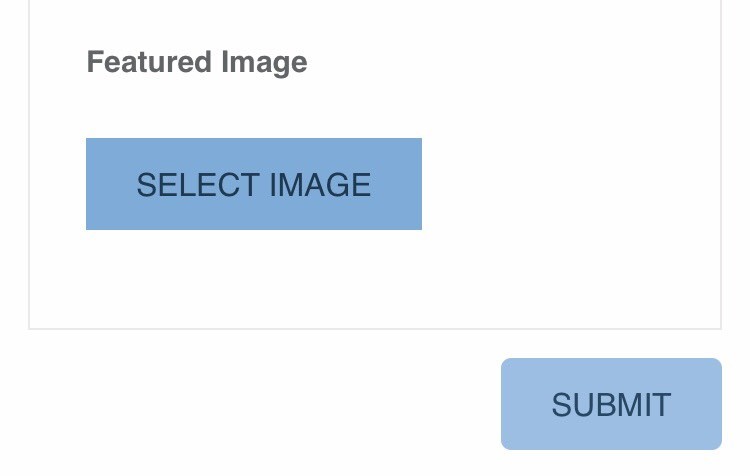
Choose a featured image which will appear as the cover photo throughout the site. Hit submit and you are done!
When you want to edit or add to your build, click the pencil "post" icon and click "Build". This will show all your build threads, click the one you want.
Now you are on your build's page. If you want to edit something you already posted, click "Edit". If you have a new entry click "Append". This will add your new post to the end of your build thread with the date. You can also easily share your build on your social media sites with the buttons on the top right of the page.

Thanks for adding your build! It will now appear on the vehicle page, on your profile, and on the news feed. You also get points which show up in your profile.
Don't forget to share your build on social media, keep your friends updated with your project!
For more info on how to use DIYauto.com, check out our help section.
Happy wrenching!
Steve and Nick
Powered by Froala Editor